
English
Appearance
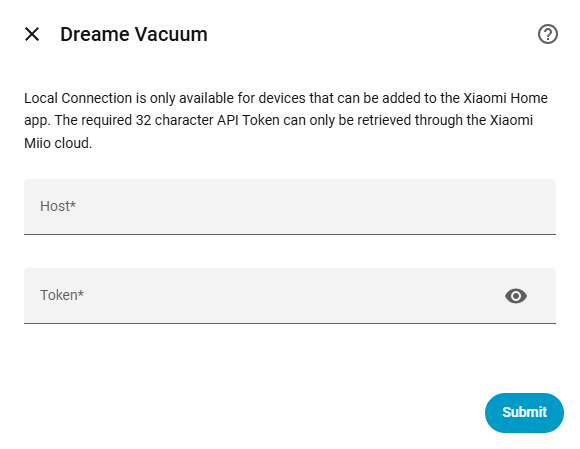
This method should be used to establish a direct local connection to the robot vacuum without relying on continuous cloud connectivity. To use this method, the device must have been successfully added to the official Xiaomi Home application (available for iOS and Android) at least once to generate a valid token. Furthermore, it must remain linked to the account during this setup step so that the integration can retrieve the required IP address and token from the cloud.

Device Compatibility
This connection method is exclusively supported for devices manufactured before 2022 that are supported with the Xiaomi Home application. If a device cannot be added to the Xiaomi Home app, it will not expose a local API under any circumstances with any token.
No Map Support Not Recommended
It is not technically possible to retrieve map data through the local API. As a result, the local connection method provides no map support, which completely disables several core features that rely on map data such as Cleaning History, Map Recovery, and dynamic Room Entities. Because the map and its dependent features are central to the integration's core functionality, this connection method is strictly not recommended. For a complete and fully functional experience, it is highly advised to use one of the cloud connection methods instead.
To configure the local connection, you must manually provide the device's IP address and token.
Subnet Requirement
For security reasons, the device only responds to requests originating from its own subnet. Therefore, the robot vacuum and Home Assistant must be on the exact same subnet for local communication to work. See this python-miio article for troubleshooting cross-subnet issues.
This is the most reliable method. It runs on Windows, macOS, or Linux, connecting directly to the Xiaomi cloud servers to retrieve the IP addresses and tokens for all devices linked to the account simultaneously.
.exe for Windows) of the Xiaomi Cloud Tokens Extractor from GitHub.de for Europe). If the region is unknown, leave the prompt blank and press Enter to scan all available servers.For users who prefer a graphical user interface over a command-line tool, a desktop application is available.
Android users can utilize a modified version of the Mi Home application to view tokens directly within the app interface on their mobile device.