
English
Appearance
In Home Assistant, each successfully configured robot vacuum is stored as a distinct integration entry. A corresponding device is automatically created and linked to this entry, exposing the vacuum's entities, services, and map data. Configuration options provide access to per-device settings, allowing the behavior of each integration entry to be customized independently.

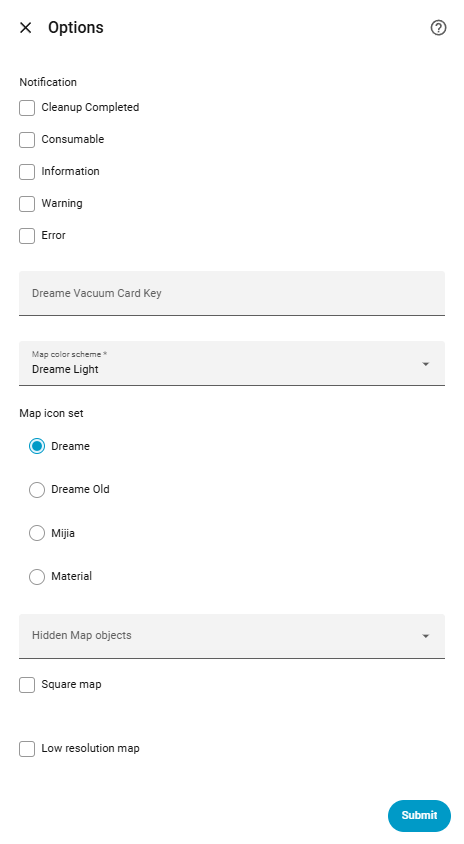
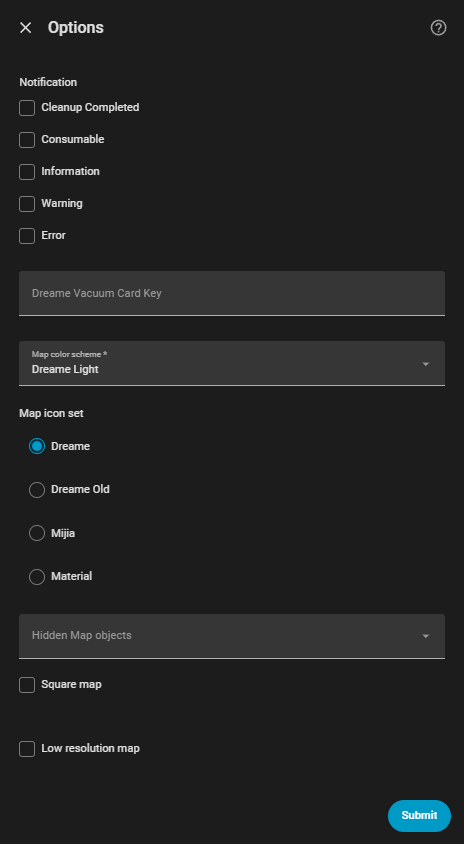
These settings can be accessed immediately during the initial setup process as the final step after completing the configuration for the selected connection type (just before the device is added to Home Assistant). They can also be modified at any time later from the Home Assistant Integrations page by clicking the Configure button located on the top right of the device card.
An optional field for a Dreame Vacuum Card license key. When a valid key is entered, the integration automatically activates the embedded custom card and makes it available among the custom cards in the dashboard. If an invalid key is entered, the card will remain in preview mode in the dashboard.
Single Device Activation
Each license key is strictly limited to a single device. Once a key has been activated, it is permanently tied to that specific device and cannot be used to activate the card on any other device.
NOTE
This field is entirely optional. If left empty, the embedded custom card can still be added to a dashboard but will operate in preview mode. A valid key can always be acquired later directly through the card's interface in preview mode.
Select which categories of persistent notifications the integration is allowed to create for this device. Unchecking a category disables it entirely, even if the underlying device event still occurs.
cleanup_completed): Generated every time a cleaning task successfully finishes.consumable): Generated when a consumable's lifespan is running low or when a component requires maintenance.information): Generated for general informational events and status updates.warning): Generated when the device encounters clearable errors or minor issues.error): Generated when the device experiences a critical fault or hardware error.More about the notifications feature
Companion App
By default, persistent notifications are only displayed within the Home Assistant dashboard. They cannot be pushed directly to the Home Assistant Companion App on a mobile device because a specific notification device ID is required. To receive push notifications on a mobile device, a custom automation must be created that either listens to the integration's events or monitors generated persistent notifications, and then forwards them to the specific mobile device.
The following settings are only available for devices configured with a cloud account (DreameHome, MovaHome, TROUVER or Xiaomi Home), since they all depend on map data:
Dreame Vacuum Card
The settings below only apply to the generated map camera entity. The Dreame Vacuum Card natively displays its own map and can independently override the Color Scheme and Icon Set via its advanced configuration. The Square Map Image and Low Resolution Map Image options have no effect on the custom card, so enabling Low Resolution Map Image is highly recommended to save memory.
Selects the color palette used when generating the map image.
dreame_light): Official Dreame app's theme.dreame_dark): Dark theme exclusive to the dreame_vacuum integration.mijia_light): Official Xiaomi Mi Home app's light theme.mijia_dark): Official Xiaomi Mi Home app's dark theme.grayscale): A colorless, monochromatic map theme.transparent): Generates the floor, walls and room fills as fully transparent, useful for overlaying the map on a custom background.See available color schemes in Map Support
Selects the icon style used for map markers such as the robot, charger and furniture, matching the icon sets from the official Apps.
dreame): Official Dreame app's icon set.dreame_old): Legacy Dreame app's icon set.mijia): Official Xiaomi Mi Home app's icon set.material): Home Assistant's built-in Material Design icons.Selects which map elements are excluded from the generated map image. This is useful for simplifying the map or hiding information not needed for a particular dashboard.
color): The distinct color fill for each room.icon): The room icon based on its type.name): The text labels for room names.name_background): The pill-shaped background behind room names with its associated color.order): The numbered badges indicating cleaning sequence.suction_level): The icon indicating the room's configured suction level.water_volume): The icon indicating the room's configured water volume.cleaning_times): The badge indicating how many times the room will be cleaned.cleaning_mode): The icon indicating the room's configured cleaning mode (sweeping, mopping, or both). (Only on supported devices)mopping_mode): The icon indicating the room's configured mop pad type. (Only on supported devices)path): The path showing where the robot has cleaned.no_go): Restricted zones.no_mop): Restricted mopping zones.virtual_wall): A virtual wall added to prevent the robot from crossing.pathway): Defined thresholds the robot must cross carefully. (Only on supported devices)active_area): The bounding box drawn during zone cleaning.active_point): Spot cleaning points showing a 1.5m² area.charger): The base station icon.robot): The icon representing the robot itself.cleaning_direction): The arrow indicating the direction the robot is currently cleaning in.obstacle): AI-detected obstacle icons such as shoes and wires. (Only on supported devices)pet): Obstacles detected as pet. (Only on supported devices)carpet): Carpet texture. (Only on supported devices)material): The floor material texture of the room, such as wood or tile. (Only on supported devices)low_lying_area): Low areas where the robot enters by lowering its LiDAR scanner. (Only on supported devices)furniture): 3D or 2D furnitures. (Only on supported devices)ramp): Ramps placed in the environment. (Only on supported devices)curtain): Curtains. (Only on supported devices)cruise_point): Go to operation points. (Only on supported devices)Forces the generated map camera image to a 1:1 square aspect ratio instead of the map's natural bounding box, which can be useful for dashboard layouts that expect a square image.
Generates the map camera image at a reduced resolution to lower memory usage and speed up updates.
Memory Constraints
Generating large maps can require a significant amount of memory. If Home Assistant crashes and restarts when navigating to the device page or when accessing the map camera entity, it is highly likely due to insufficient memory. Enabling this option will usually resolve the issue.
NOTE
Enabling this option also disables the Saved WiFi Map camera entity, since it is not available in low resolution.
Only available for devices configured with a Xiaomi Home account. This setting allows updating the preference originally selected during the initial configuration step.
Testing Local API Availability
This option provides a very useful way to test local connectivity. To ensure the initial device setup succeeds without errors, Prefer Cloud can be left enabled during the configuration flow. Once the device is successfully added to Home Assistant, this option can be disabled here to check if the device actually supports the local API. If the device becomes unavailable after disabling it, simply re-enable it to fall back to the cloud connection.
dreame_vacuum:
  # Local connection
  host: 192.168.1.100
  token: b2a1c3d4e5f6a7b8c9d0e1f2a3b4c5d6

  # Cloud connection
  username: your@email.com
  password: your_password
  country: de
  prefer_cloud: true # Only available on Xiaomi Home

  # Options available regardless of connection type
  dvc_key: 123e4567-e89b-42d3-a456-426614174000
  notify:
    - information
    - warning
    - error

  # Options available only with map support (Cloud)
  color_scheme: dreame_dark
  icon_set: dreame_old
  hidden_map_objects:
    - name_background
    - name
    - order
  square: true
  low_resolution: true