
English
Appearance
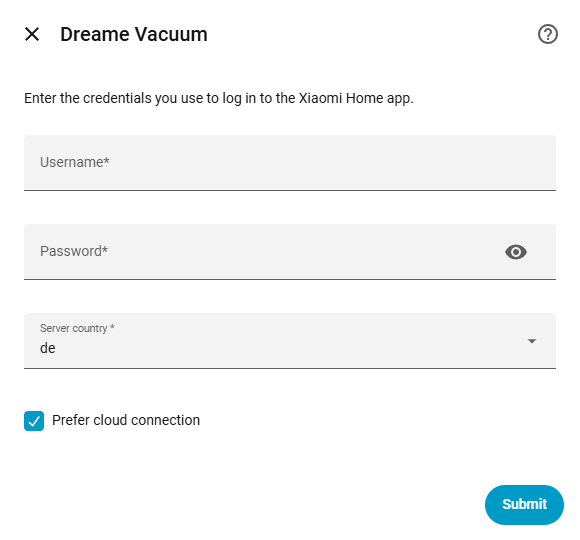
This method should be used if the robot vacuum is currently managed via the Xiaomi Home application. To ensure compatibility, it can be verified against the official Xiaomi Home app available for iOS and Android.

Requirements
Third-Party Logins
If the account was created using a third-party service (such as Google or Apple), a dedicated password must be generated within the application's user settings first. Third-party account passwords cannot be used for authentication.
App Selection Recommendation
Some devices can be configured using either the Dreamehome or Xiaomi Home application. Unless a local connection is strictly required, it is highly recommended to use the Dreamehome app instead of Xiaomi Home for supported devices:
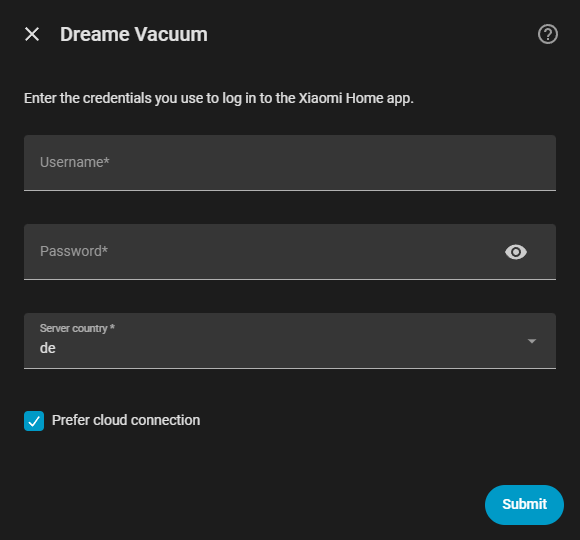
During the configuration step, an additional Prefer Cloud option is available and is checked by default.
Subnet Requirement
For security reasons, the device only responds to requests originating from its own subnet. Therefore, the robot vacuum and Home Assistant must be on the exact same subnet for local communication to work. See this python-miio article for troubleshooting cross-subnet issues.
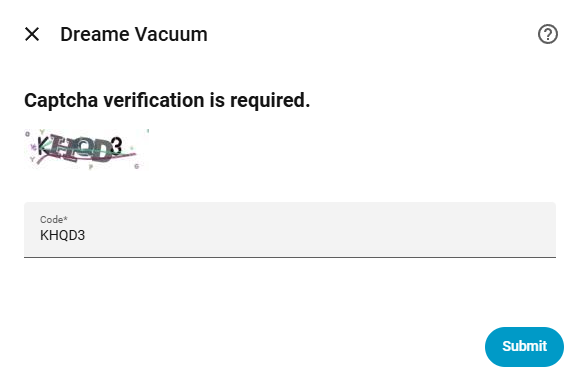
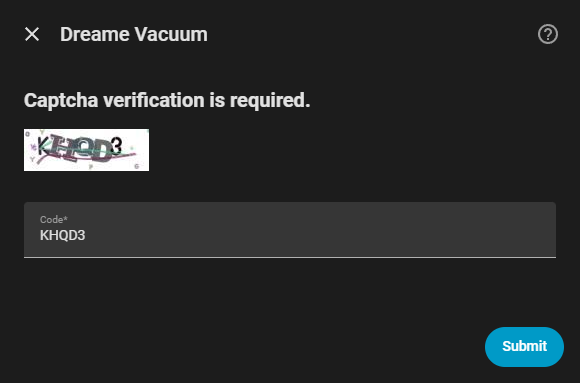
If the Xiaomi Home servers flag the login attempt or IP address as untrusted, a captcha verification step will be required. When this occurs, the captcha image must be solved to proceed to the next step.

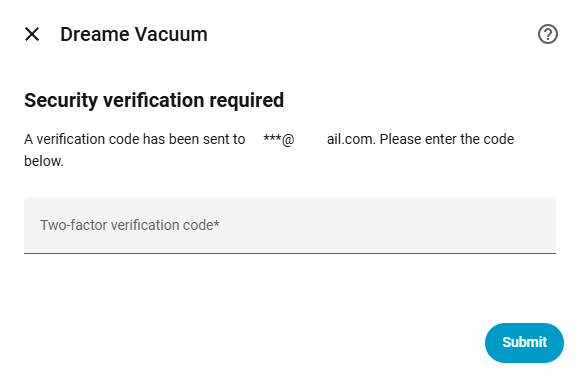
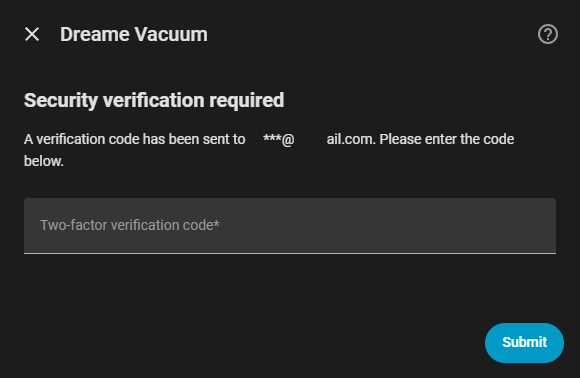
In addition to a captcha, an untrusted login attempt may also trigger Two-Factor Authentication (2FA). The integration will automatically request a 2FA code from the Xiaomi Home servers, which is sent to the registered phone number (prioritized) or email address.
This code must be retrieved and entered into the configuration step to complete the login.

2FA Limitations
Unlike other cloud connection methods that support push notifications, the Xiaomi Home connection relies entirely on background polling to fetch the latest state. To optimize network usage, the polling interval is dynamically calculated based on the time elapsed since the last state change; requests are sent frequently while the device is actively running, but the interval gradually increases as more time passes while the device remains idle.
The integration securely stores an authentication token after a successful login to communicate with the cloud servers. If this token expires or is invalidated by the cloud service for any reason, Home Assistant will automatically trigger a re-authentication flow, prompting for the account credentials to be entered again.