
English
Appearance

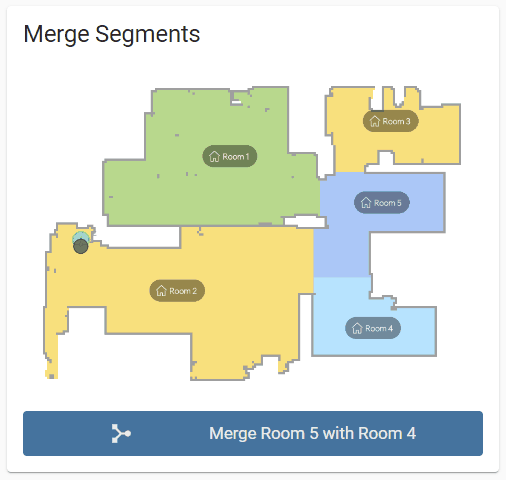
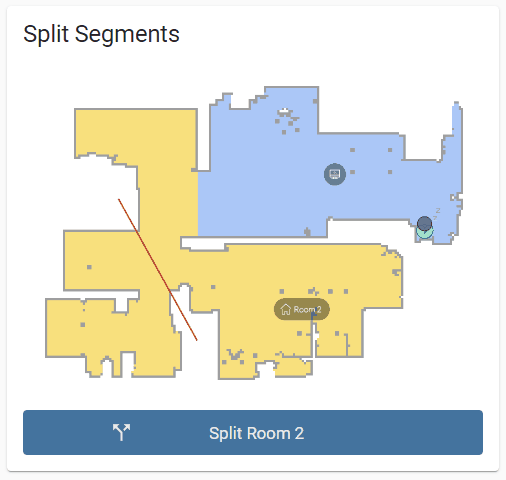
Map editing services also uses the vacuum domain because all services are available even without cloud connection.
dreame_vacuum.vacuum_request_map
Request device to upload a new map to the cloud. (This service is useful when cloud connection is not used and another integration used for handing the map rendering)
IMPORTANT
Device does not responds to this action when:
dreame_vacuum.vacuum_select_map
Change currently selected map. (Only possible of multi-floor map is enabled)
NOTE
service: dreame_vacuum.vacuum_select_map
data:
    map_id: 27
target:
entity_id: vacuum.vacuumdreame_vacuum.vacuum_delete_map
Delete a map.
NOTE
service: dreame_vacuum.vacuum_delete_map
data:
    map_id: 48
target:
entity_id: vacuum.vacuumdreame_vacuum.vacuum_rename_map
Rename a map.
NOTE
service: dreame_vacuum.vacuum_rename_map
data:
    map_id: 14
    map_name: "Second Floor"
target:
entity_id: vacuum.vacuumdreame_vacuum.vacuum_restore_map
Restore a map from previous state that are created and uploaded by the device.
NOTE
Restore selected map to second saved recovery map in the recovery map list
service: dreame_vacuum.vacuum_restore_map
data:
    recovery_map_index: 2
target:
    entity_id: vacuum.vacuum
Restore saved map with id 14 to original state
service: dreame_vacuum.vacuum_restore_map
data:
    map_id: 14
    recovery_map_index: 1
target:
entity_id: vacuum.vacuumdreame_vacuum.vacuum_restore_map_from_file
Restore a map from previously saved recovery map file.
NOTE
Restore selected map from saved recovery map file
service: dreame_vacuum.vacuum_restore_map_from_file
data:
    file_url: http://192.168.1.10/local/2023-11-04-1724223415-423528451_284320462.1156.mb.tbz2
target:
    entity_id: vacuum.vacuum
Restore saved map with id 14 saved recovery map file
service: dreame_vacuum.vacuum_restore_map_from_file
data:
    map_id: 14
    file_url: https://dreame-cn.oss-cn-shanghai.aliyuncs.com/iot/tmp/000000/ali_dreame/YR649291/648921668/101?Expires=1699189998&OSSAccessKeyId=LTAI5t96WkBXXNzQrX4HtQti&Signature=ttRrjg8p7aC650H3DwI3%2F2ngOOE%3D
target:
entity_id: vacuum.vacuumdreame_vacuum.vacuum_backup_map
Trigger upload of a saved map as a recovery map to the cloud.
NOTE
Trigger backup of selected map
service: dreame_vacuum.vacuum_backup_map
target:
    entity_id: vacuum.vacuum
Trigger backup of map with id 15
service: dreame_vacuum.vacuum_backup_map
data:
    map_id: 15
target:
entity_id: vacuum.vacuumdreame_vacuum.vacuum_save_temporary_map
Save newly created map. (Device ask you to do when first map is created after factory reset)
dreame_vacuum.vacuum_discard_temporary_map
Discard newly created map.
dreame_vacuum.vacuum_replace_temporary_map
Replace new map with an old one.
NOTE
service: dreame_vacuum.vacuum_replace_temporary_map
data:
    map_id: 39
target:
entity_id: vacuum.vacuumdreame_vacuum.vacuum_rename_segment
Set custom name for a room in current map.
NOTE
service: dreame_vacuum.vacuum_rename_segment
data:
    segment_id: 3
    segment_name: "Dining Room"
target:
entity_id: vacuum.vacuumdreame_vacuum.vacuum_set_obstacle_ignore
Set ignore status of a detected obstacle on the current map so the robot does not avoid it on the following jobs.
NOTE
obstacles attribute of the current map camera entity. (More about obstacles)Ignore the obstacle at [819, -263]
service: dreame_vacuum.vacuum_set_obstacle_ignore
data:
    x: 819
    y: -263
    obstacle_ignored: true
target:
    entity_id: vacuum.vacuum
Stop ignoring the obstacle at [819, -263]
service: dreame_vacuum.vacuum_set_obstacle_ignore
data:
    x: 819
    y: -263
    obstacle_ignored: false
target:
entity_id: vacuum.vacuumAdditional map management services are exposed by the integration. Several of these parameters (such as floor material, room visibility, and mop type) are already exposed and can be configured directly through Room Entities, making the direct use of these services unnecessary.
Not intended for End Users
These services are strictly exposed for the use of the Dreame Vacuum Card. They do not have parameters that are easily accessible by end-users. If invalid parameters are sent, they may be passed directly to the device, which can result in severe issues such as corrupted maps or the device entering a boot loop. Therefore, these services must not be used unless the exact functionality and parameter structure are fully understood. For safety reasons, these services are explicitly excluded from services.yaml and do not include translation strings.
dreame_vacuum.vacuum_set_carpet_areadreame_vacuum.vacuum_set_carpet_typedreame_vacuum.vacuum_set_curtaindreame_vacuum.vacuum_set_custom_carpet_cleaningdreame_vacuum.vacuum_set_floor_materialdreame_vacuum.vacuum_set_furnituredreame_vacuum.vacuum_set_hidden_segmentsdreame_vacuum.vacuum_set_low_lying_areadreame_vacuum.vacuum_set_mop_typedreame_vacuum.vacuum_set_predefined_pointsdreame_vacuum.vacuum_set_restricted_zonedreame_vacuum.vacuum_set_router_positiondreame_vacuum.vacuum_set_segment_typedreame_vacuum.vacuum_set_thresholddreame_vacuum.vacuum_set_virtual_thresholddreame_vacuum.vacuum_set_wallsdreame_vacuum.vacuum_merge_segmentsdreame_vacuum.vacuum_split_segments